10 Hidden Android & iPhone Features That Make Your Phone Feel New Again
Most people barely use a fraction of what their phone can actually do. Below are 2 free features you can try right now.
Use Back Tap / Quick Tap for Instant Actions
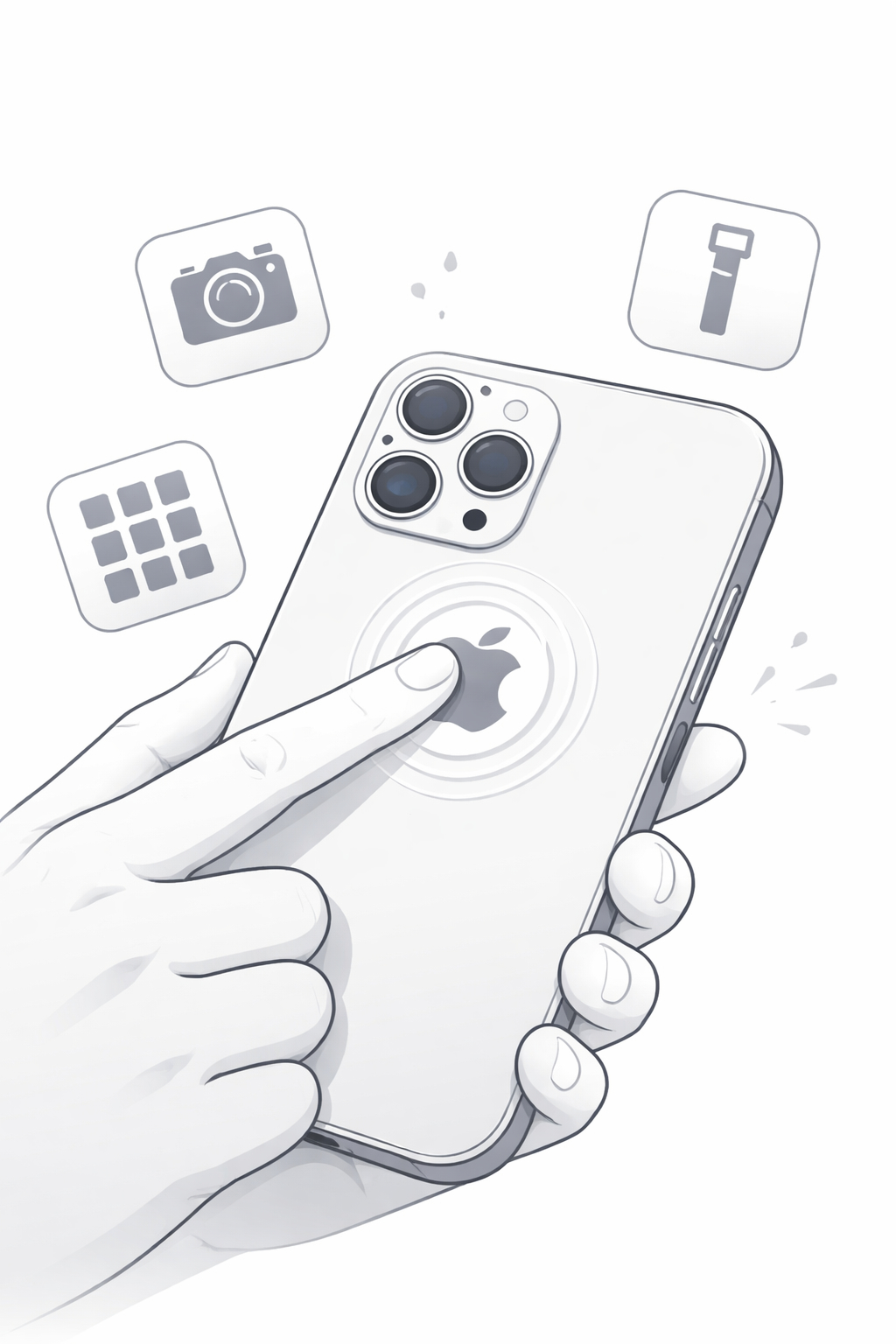
One of the easiest ways to make your phone feel smarter is enabling a tap gesture on the back of the device.
Instead of unlocking your phone, looking for an app, or pressing button combinations, you can simply tap the back
of your phone to trigger an action in seconds.
On supported iPhones and Android devices, this feature can be used for practical shortcuts like:
- Taking a screenshot instantly
- Turning on the flashlight
- Opening a favorite app faster
- Launching a shortcut without searching through menus
It sounds small, but once you set it up, it makes everyday use feel much faster and more convenient.
It’s one of those hidden features that many people never notice, even though it can save time every single day.
How to find it on iPhone
Go to Settings > Accessibility > Touch > Back Tap.
There, you can choose an action for a double tap or triple tap on the back of your phone.
How to find it on Android
On some Android devices, especially Pixel phones, go to Settings > System > Gestures > Quick Tap.
Depending on your model, the path may look a little different, but the idea is the same: tap the back of the phone to launch an action.
Best beginner setup
A simple setup works best at first. For example:
- Double tap = screenshot
- Triple tap = flashlight
That already makes the feature useful from day one. Later, you can experiment with more advanced shortcuts if you want.
Quick tip
If it doesn’t work perfectly at first, tap the middle area on the back of the phone instead of the camera section.
Thick cases can also reduce sensitivity a little.
Stop Scrolling Through Apps and Use Search Properly
A lot of people still waste time swiping through screens and looking for app icons manually.
That may seem normal, but it’s one of the slowest ways to use a phone.
Both Android and iPhone already have a built-in search that lets you launch apps much faster.
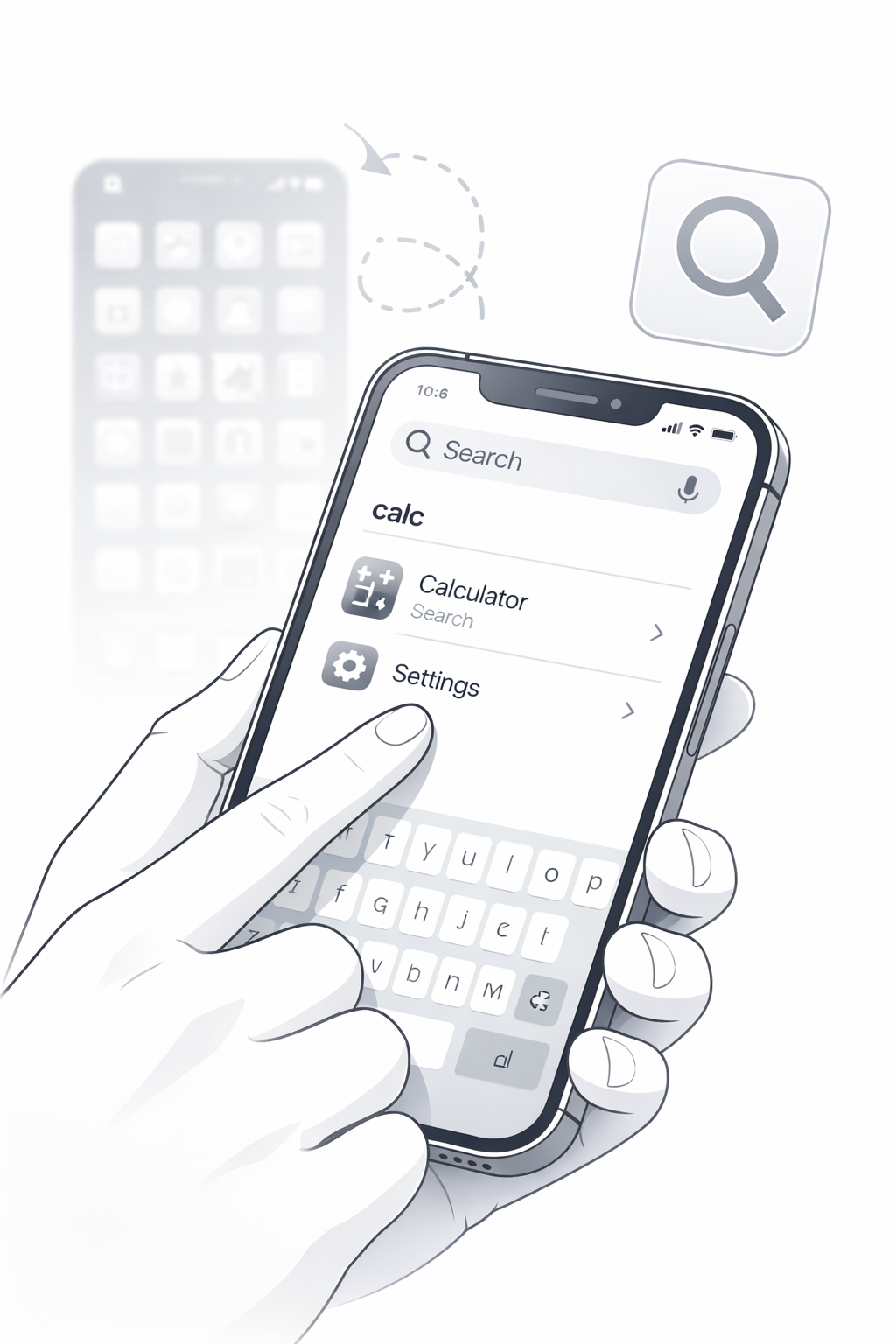
Instead of scrolling through pages of icons, you can simply:
- Open your app list or home screen search
- Type the first 2–3 letters of the app name
- Tap the result and open it instantly
For example, typing “cal” can open Calculator, while “ins” can bring up Instagram right away.
It only takes a second, and after a few days it becomes much faster than searching visually.
How to use it on iPhone
On the home screen, swipe down to open search. This opens Spotlight, where you can type an app name, contact, setting,
or other item stored on your phone.
How to use it on Android
Swipe up to open the app drawer. Most Android phones include a search bar at the top, so you can immediately type
the first letters of the app you want.
Why this is better
Using search saves time and feels cleaner. You stop relying on messy home screens, and your phone starts feeling quicker
because you always know the fastest way to open what you need.
It also helps if you have a lot of apps installed. Instead of remembering exactly where every icon is, you only need to remember the name.
Extra benefit most people ignore
Search is not only for apps. On many phones, it can also help you find:
- Contacts
- Settings like Wi-Fi, Bluetooth, or Display
- Files or saved items
- Shortcuts and system tools
Once you get used to this, you may stop using icons as your main way of opening things altogether.
Simple habit that helps
Try forcing yourself to use search for the next few days instead of scrolling.
It feels small, but it quickly becomes one of the best ways to speed up daily phone use.

Unlock the Full Guide
Want the remaining hidden tips? Complete the quick unlock step below to access the full downloadable guide.
- Disable any ad blockers if you have them enabled and refresh this page.
- Click the “Unlock full guide” button below.
- Complete the required action shown in the content locker.
- Wait until access is confirmed.
- Open the full guide and discover the rest of the tips.
The full guide includes extra smartphone tweaks, privacy settings, speed improvements, and practical hidden shortcuts.